Posts
-
Migrating from phpWebSite to Wordpress

About seven years ago I bet on the wrong horse. I chose phpWebSite as the CMS to run a site for a community group I’m a part of.
Why the wrong horse? Well seven years ago Wordpress wasn’t in the game but I do remember evaluating Drupal and whilst it has a vibrant, active community the same cannot be said for phpWebSite.
I wanted to give our site a visual refresh, make it easier for people to contribute and to move to a more secure platform than the out of date version of phpWebSite we were running on. The obvious choice was Wordpress.
I’ve looked before for tools to migrate from phpWebSite to Wordpress but never found anything so I decided to write a tool myself. As I was getting started writing a tool, the friend I was working on the migration with discovered a CSV importer plugin already written for Wordpress so we decided to see how hard it would be to export data from phpWebSite as CSV that this plugin could understand.
As we didn’t have huge amounts of content it turned out to be much easier to export the Announcement posts as CSV using phpMyAdmin and manually recreate everything else (just a handful of comments and some image galleries).
The trick with exporting the Announcement posts was to use the CSV for MS Excel option of phpMyAdmin and then manipulate the data using LibreOffice Calc into the format expected by the CSV Importer plugin.
Since we only had a handful of comments I simply recreated these using the standard Wordpress UI and manually set the dates to match phpWebSite. Photos are stored under
images/<module name>/so I just copied theimages/photoalbumdirectory and uploaded all the images in each gallery using the usual Wordpress uploader. -
Failed experiment: A Twitter bot for Sydney Airport
Yesterday I noticed the kerfuffle about the UK's Tower Bridge Twitter account. It's a bot that tweets when the Tower Bridge in London opens and closes.
In the author's announcement of the bot he said,
The idea of overhearing machines talking about what they’re doing is, to my mind, quite delightful.
and I tend to agree.
So I thought I'd look at setting something up locally. I live close to the flight path so while I was pondering this a plane flew over and I thought I'd set up a bot for the Sydney Airport.
They have listings of arrivals and departures so I hacked together a bot and this was the result:
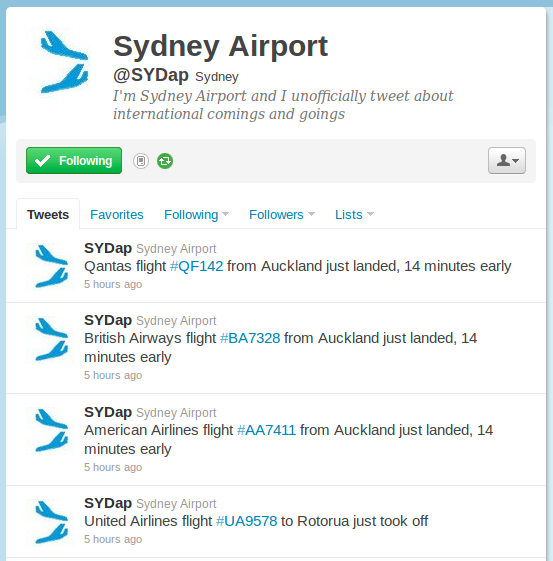
So why is this a failed experiment? Well after running it for a time I realised that the source data, scraped from the arrivals and departures page of the Sydney Airport site, didn't really match what I was trying to do with it.
The data is focused on providing information to passengers, not an accurate picture of what really is coming and going from the airport.
The lesson? Data can't always be hacked to suit other purposes and if it's the foundation of a project, as it so often is, then spend the time ensuring it matches up with what you're trying to do.
That said, I don't consider this a waste of time. Failure's part of the process.
-
Featured on ScraperWiki
I've been using the online (sorry, cloud) open data scraping tool, ScraperWiki for some time now.
We've written a bunch of scrapers that are being used by PlanningAlerts and I've also created a few for other bits of data I am interested in or that I've been commissioned by clients to write.
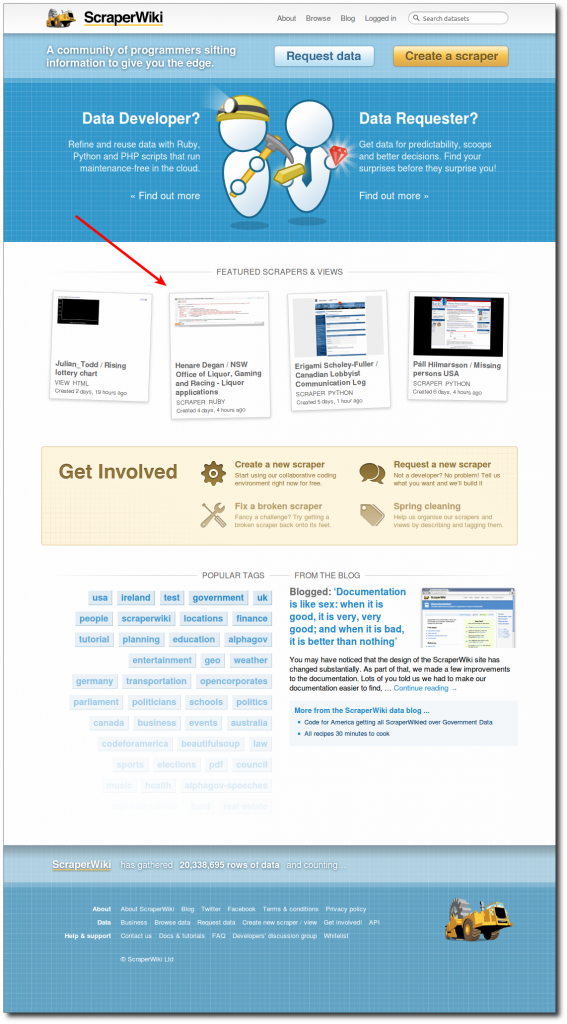
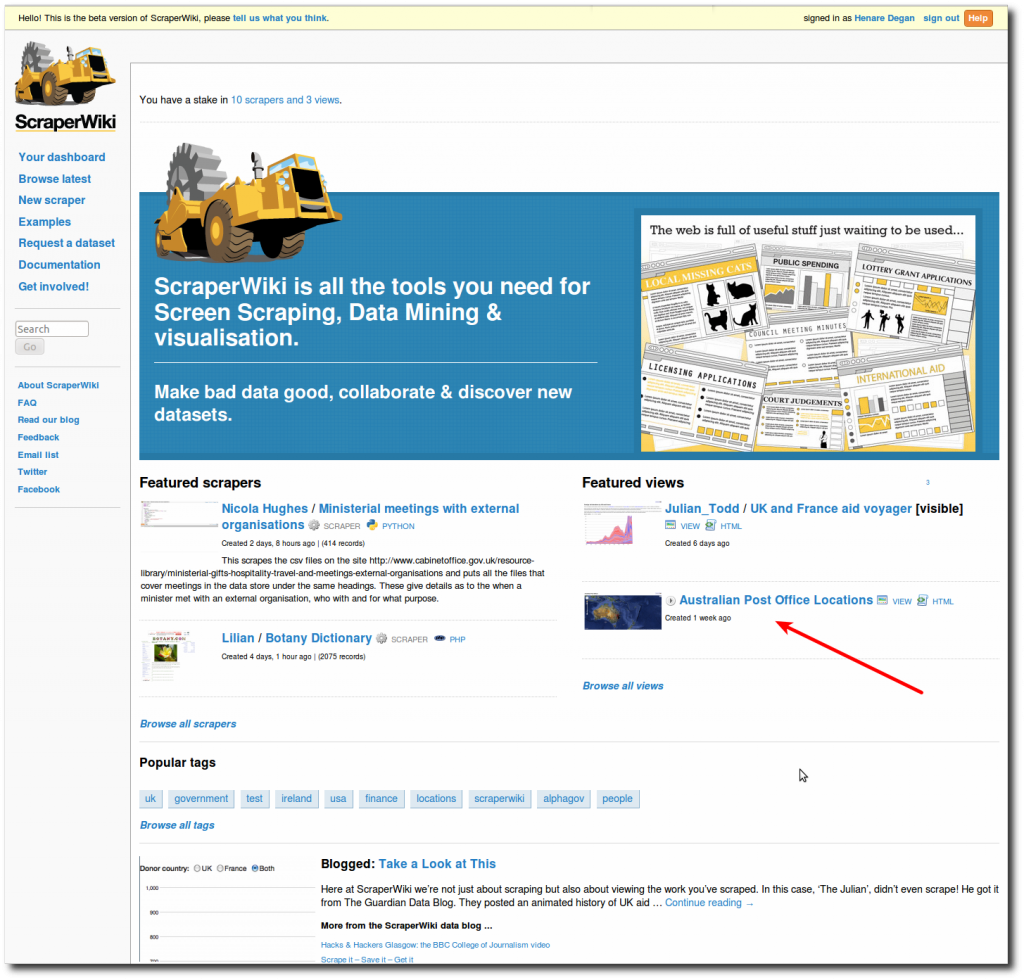
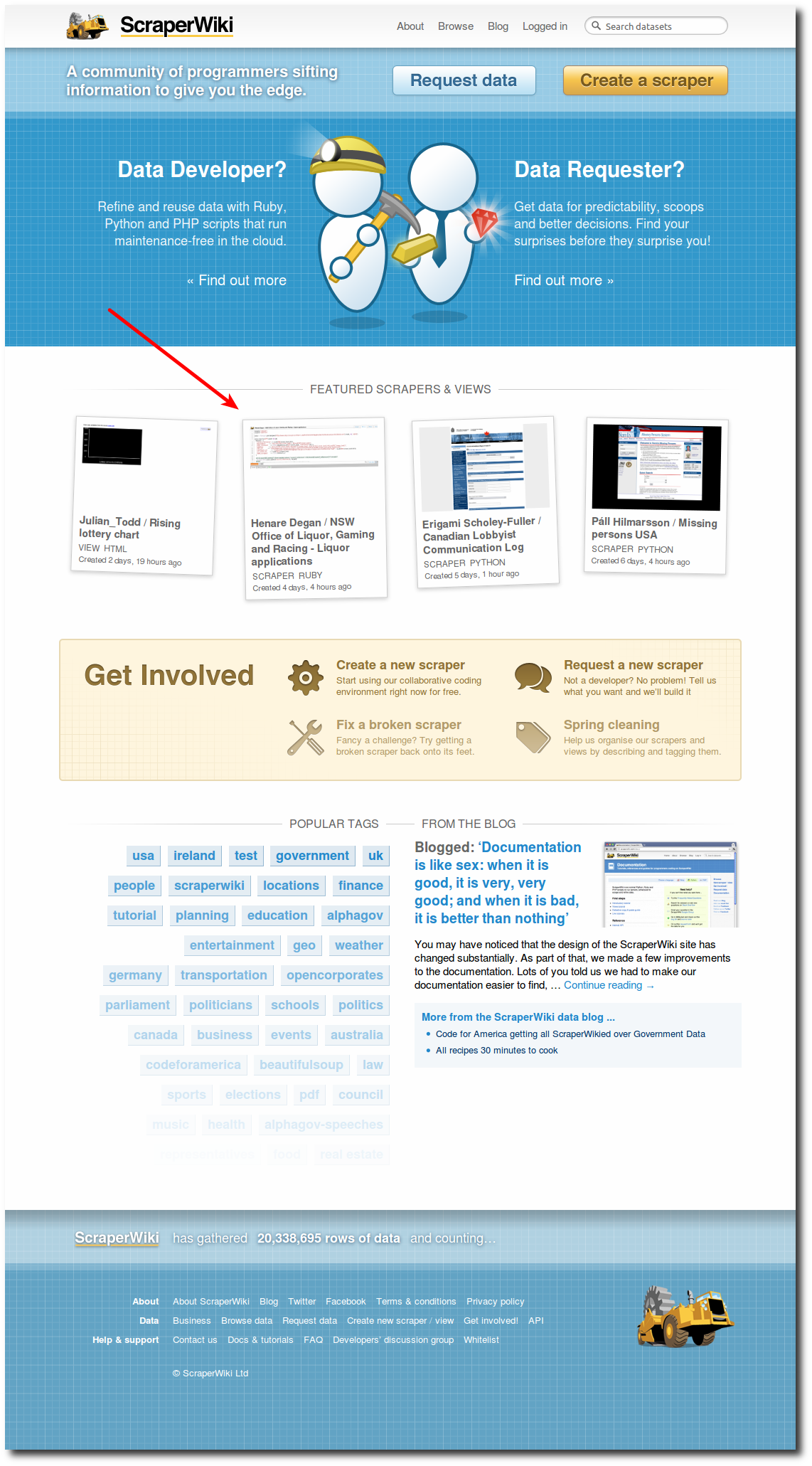
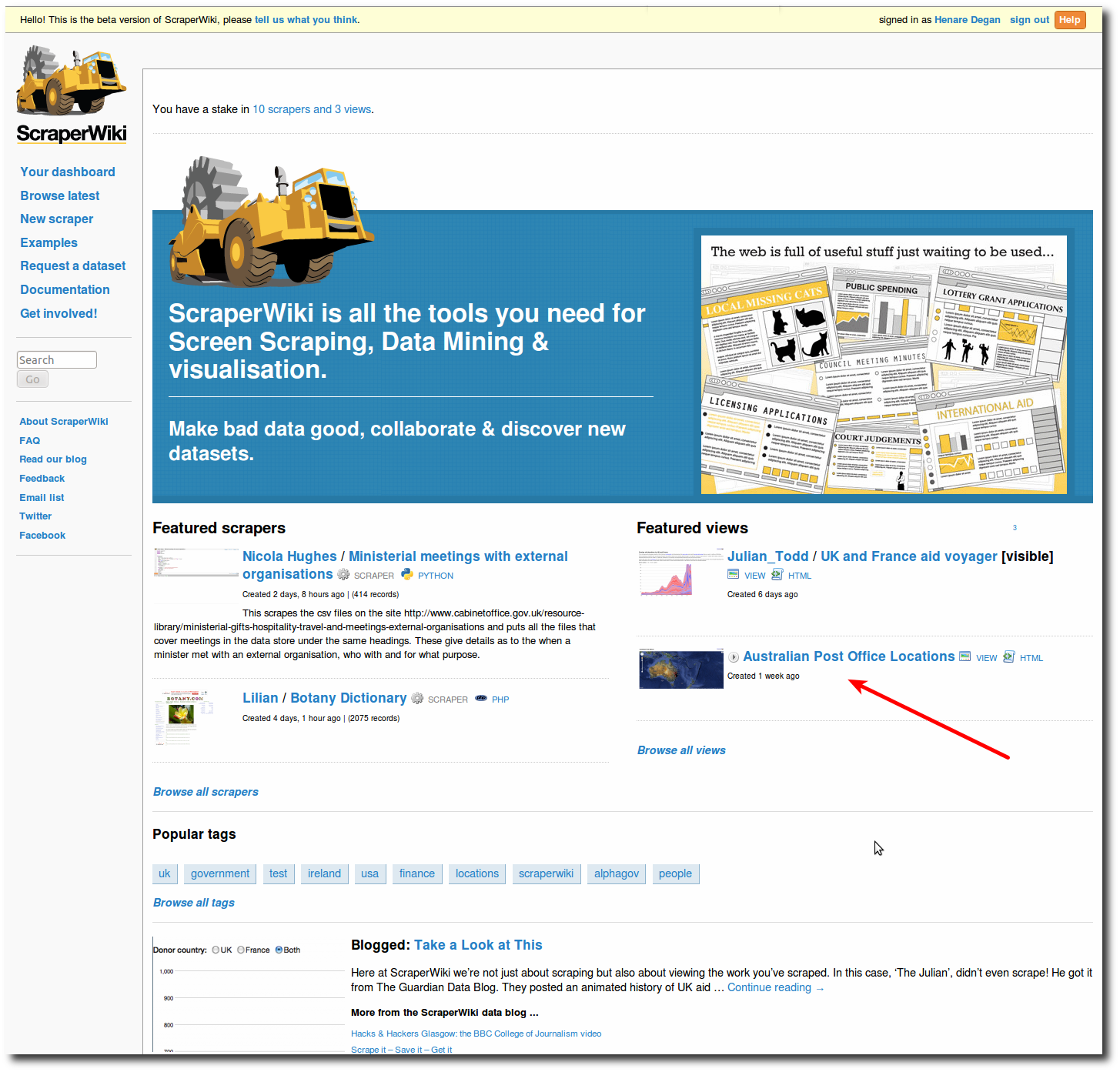
For the second time, my creations have been featured on the front page, isn't that nice? :)
-
Crank up your online security to eleven in three easy steps
I've been meaning to write this blog post for a long time and hearing in Jonathan Holmes' recent article on The Drum that he doesn't have a complex password and reuses that password over and over again tipped me over the edge. I hear this time and time again and it doesn't need to be this way.
Here's three simple steps that will massively increase your online security. It won't make you bullet-proof and you should still do all those other things security people have been telling you for years but these are really easy to do, anyone can do them and they plug the biggest security hole that people have these days - insecure and reused passwords.
Step 1. Create a complex password
Wait! Don't stop reading because you think it's going to be hard to remember - complex passwords can be easy to remember.
A software tool called pwgen can generate complex passwords that are pronounceable and therefore easier for us humans to remember.
There's an online version you can use to generate these. Go off and generate one now and use it for your most important online tool, such as your Gmail account.
Step 2. Start using a password manager
If you're reading this, chances are you have heaps of username and password combinations for all of the online services you use. To manage these you need to be using a password manager.
Password managers generate complex passwords for services that you don't need to remember. When you open your password file you just enter one master password and it unlocks all of your other varied, complex passwords.
I use KeePass because it is open source and works on the different platforms I use (Linux and Android). I also use Dropbox to ensure it's synchronised between all my computers and is always available for download over the Internet.
Go and download it now and use the password you generated in the last step as your master password.
Step 3. Move all of your passwords into your password manager
This sounds hard but the trick is not to go around laboriously changing all of your passwords up front. Whenever you touch a service (e.g. login to Twitter, upload photos to Flickr, etc.), just go to your settings page and use your password manager to generate a new password. It'll take you 30 seconds.
Off you go - go and change a few now. You'll feel more secure right away.
Update:
Jonathan Holmes responds, "easy! You don't understand how freaked out people like me get when confronted by something like KeePass". That's a fair point and I feel embarrassed I've done the stereotypical geek thing and assumed something easy for me wouldn't be difficult for a non-geek.
I'm off to eat some humble pie :) In the mean time, hopefully these instructions at least inspire some geeks to fix up their own online security and, in finest nerdy tradition, show their friends and family.
-
Show your MP's most recent speeches on your Drupal site
In less than a week I'm off to DrupalDownunder for work as the company I work for has started to look at using more Drupal in the work they do for clients.
Given that I've not delved too deep into Drupal and certainly never developed on it, I thought I had better find out a bit about it before the conference.
I decided to write a module similar to oa4wp that displays your MP's most recent speeches in a block. After a few hours hacking on Sunday afternoon, here it is:
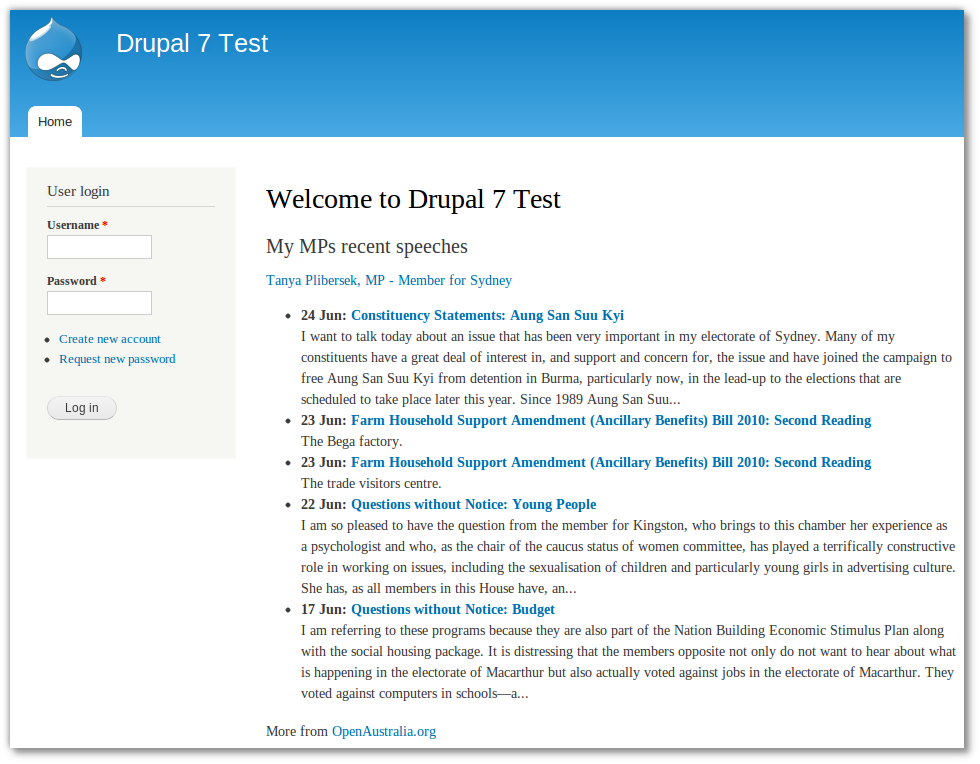
OpenAustralia Drupal in a content block I was pleased to get something usable in such a short amount of time and found the development reasonably straight-forward, despite the documentation for developers not really being there yet for version 7.
The block also works quite well as a sidebar, depending on what you want to use it for.
Install it, just like any other module, by downloading it and putting it in its own directory in the sites/all/modules folder of your Drupal site.
subscribe via RSS